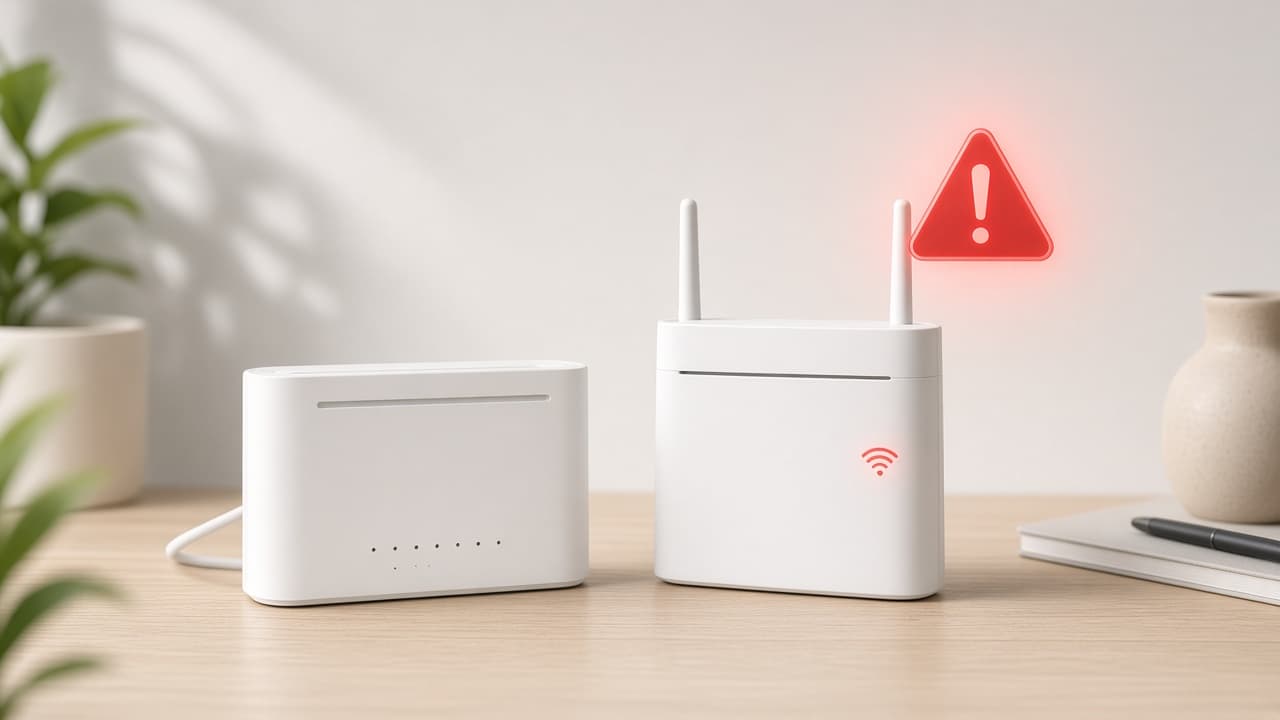
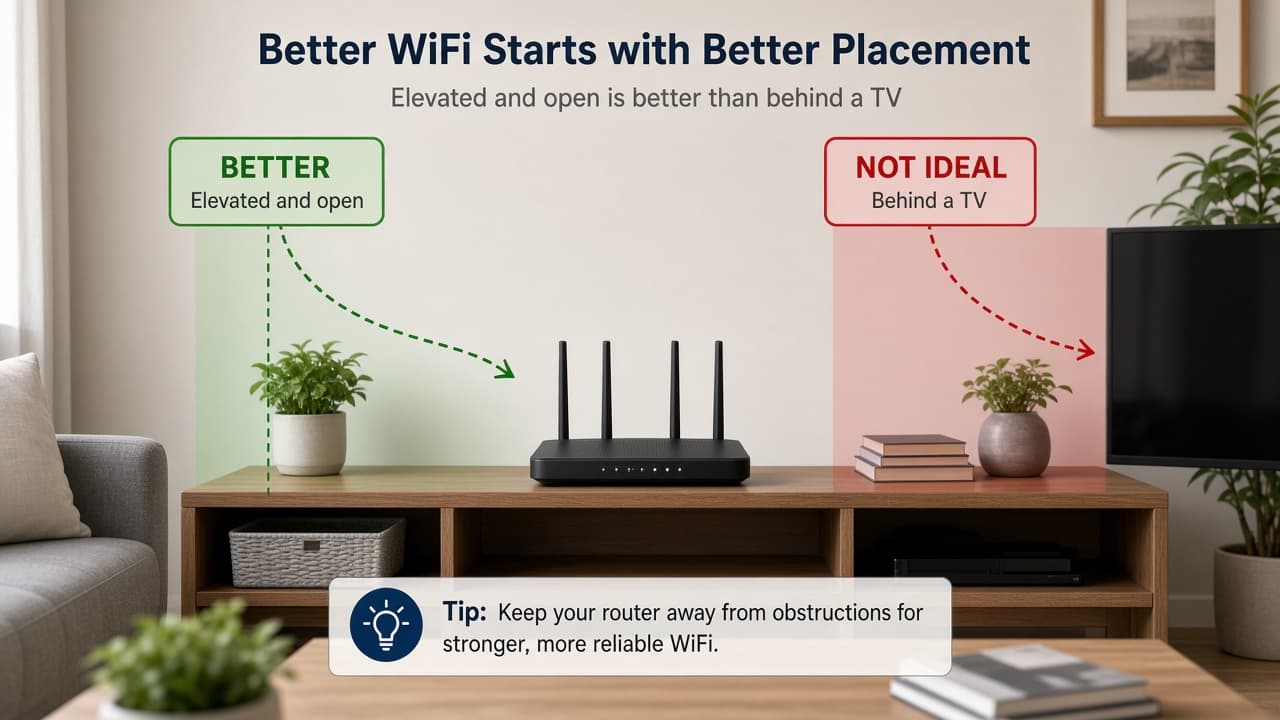
A soft restart fixes many Spectrum WiFi and connection stalls. Factory reset returns the router to default settings and should be a later step, not the first one.
Soft Restart Your Spectrum Router First
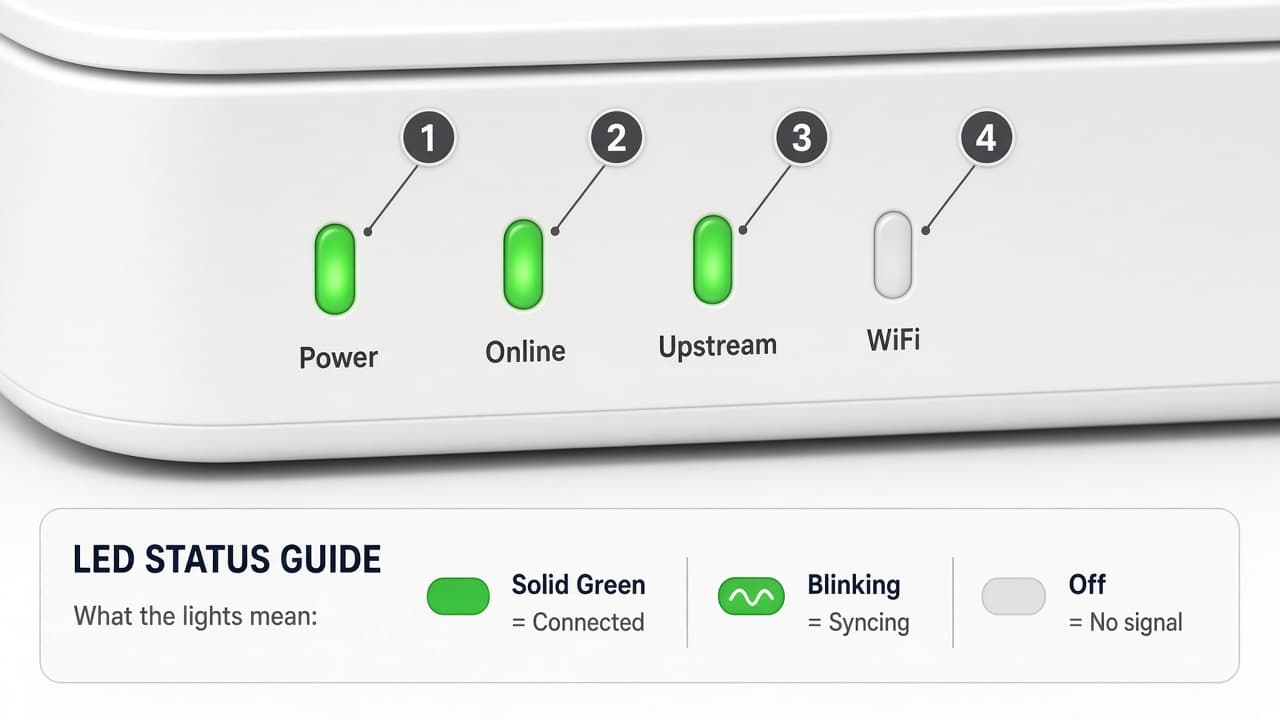
Step 1: Check power and status lights
Confirm the router or gateway is powered on and note the current lights. If power is out, check the outlet and adapter before a reset. This takes about 30 seconds and tells you whether the device is even on.
Ready to restart? Go to the next step.
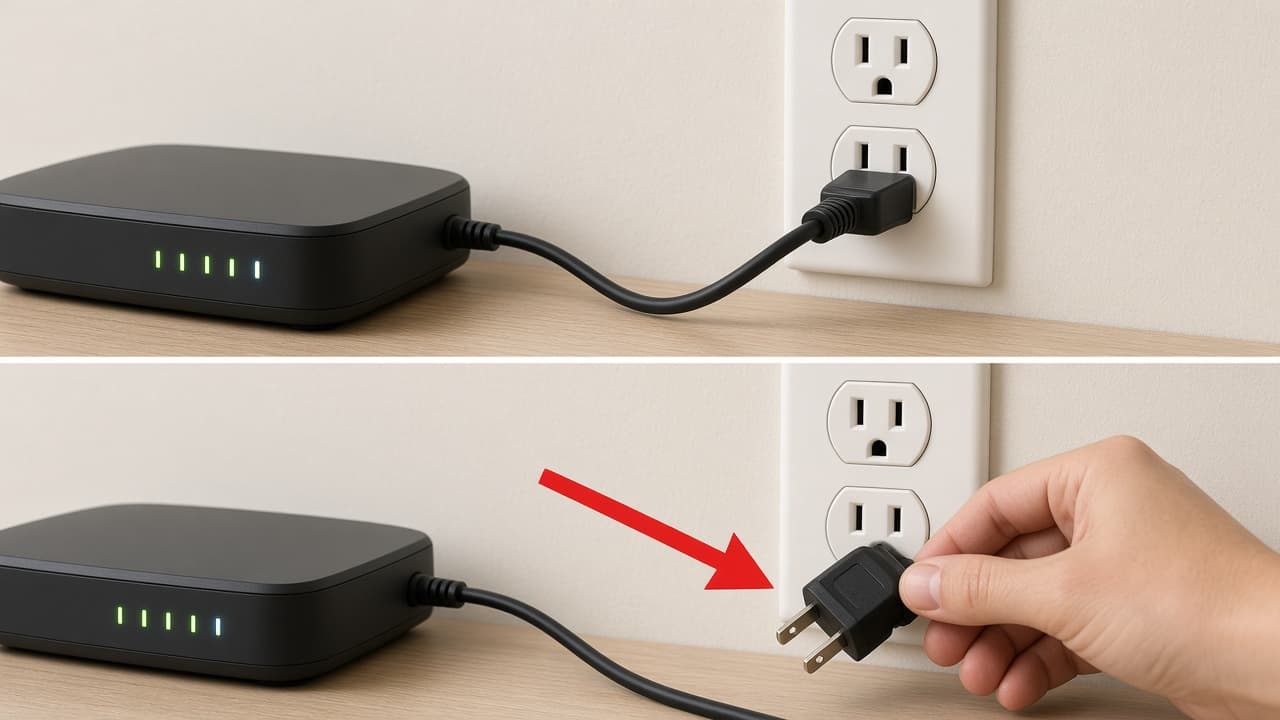
Step 2: Unplug power for 60 seconds
Unplug the router power cord from the outlet or device. Wait a full 60 seconds. If the modem is separate, leave the modem plugged in during a router-only restart. Waiting the full minute clears temporary glitches better than a quick flick.
Waited 60 seconds? Go to the next step.
Step 3: Restore power and wait for lights
Plug the router back in. Wait 1–2 minutes for lights to stabilize, then test WiFi and a wired connection. If you restarted both modem and router, power the modem first and wait for online lights before powering the router.
Still offline after 3 minutes? Go to the next step.
Step 4: Recheck cables if the restart fails
Reseat coax and Ethernet connections, then retest. Loose cables can look like a router failure. If wired and wireless both stay down, follow Spectrum Internet Not Working.
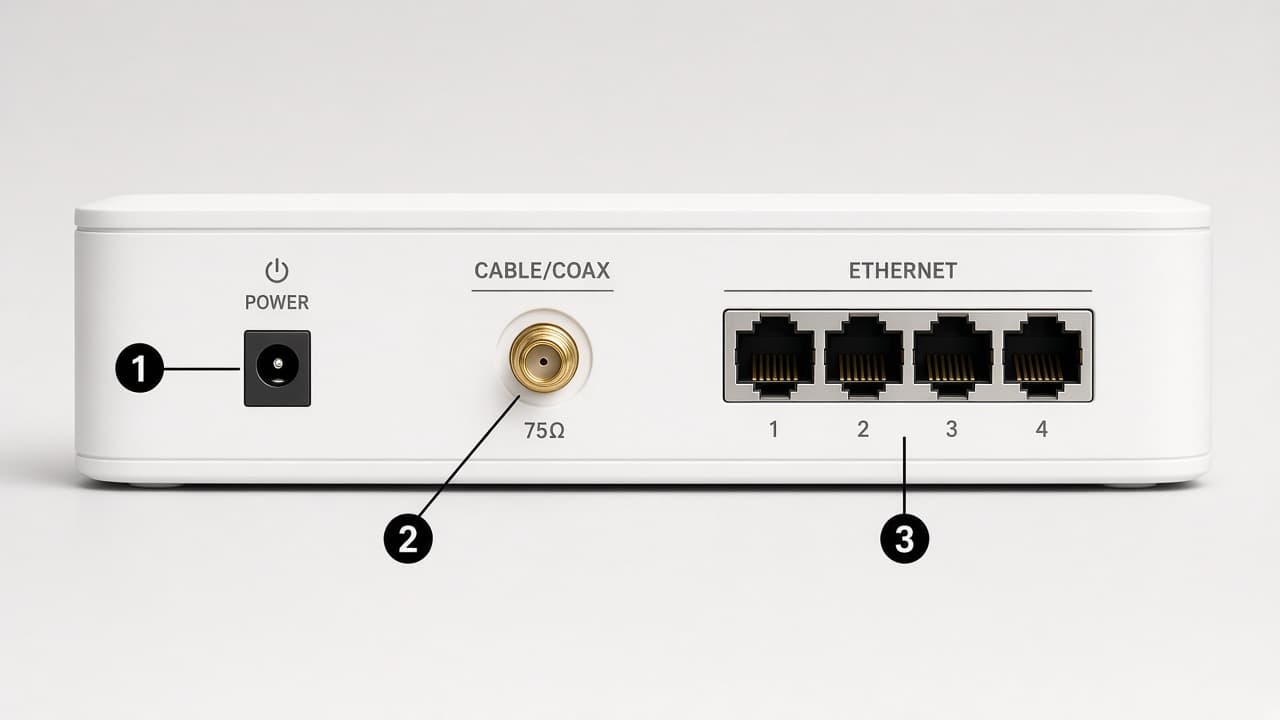
Cables are firm and still stuck? Consider factory reset next.
When and How to Factory Reset
Step 5: Locate the reset pin hole
Find the small reset button on the back or bottom of the Spectrum router or gateway. You usually need a paperclip. Confirm you are pressing reset, not a WPS button.
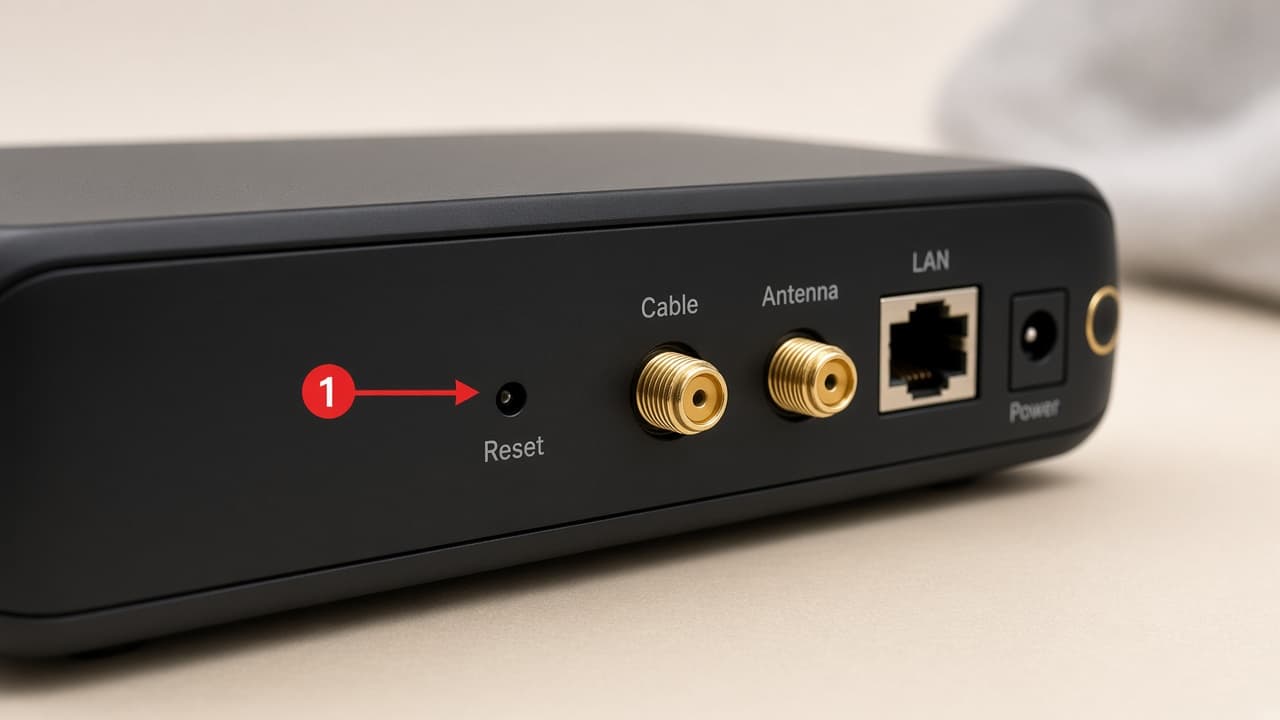
Found the reset hole? Go to the next step.
Step 6: Hold reset until lights cycle
Press and hold reset for about 10–15 seconds, or until lights flash or cycle. Release, then wait 2–3 minutes for reboot. Reconnect devices using the default or newly set WiFi name and password.
Spectrum equipment decision checklist
This comparison explains common equipment decisions. Exact models, rental fees, and supported features should be confirmed with Spectrum.
Last updated March 15, 2026 · Confirm current details with Spectrum
Comparison criteria
- Leased vs owned
- WiFi coverage
- Support simplicity
- Return risk
| Option | Often useful when | Watch for |
|---|---|---|
| Spectrum-provided modem/router | You want a simpler setup and Spectrum-supported troubleshooting | Possible equipment rental fees and return requirements later |
| Customer-owned compatible equipment | You already own compatible gear or want more control | Compatibility, provisioning, and self-managed WiFi settings |
| Additional WiFi coverage tools | Large homes or weak signal areas | Placement, band settings, and whether Spectrum support covers the add-on |
Important notes
- Do not assume a specific Spectrum model or fee from this table.
- Confirm equipment options and return rules through official Spectrum channels.
Official references
When to Contact Spectrum Support
Contact Spectrum through official tools if the modem never gains signal after restarts, factory reset does not restore service, or multiple homes nearby are also offline. Start at Spectrum Support and review How to Check for a Spectrum Outage.